

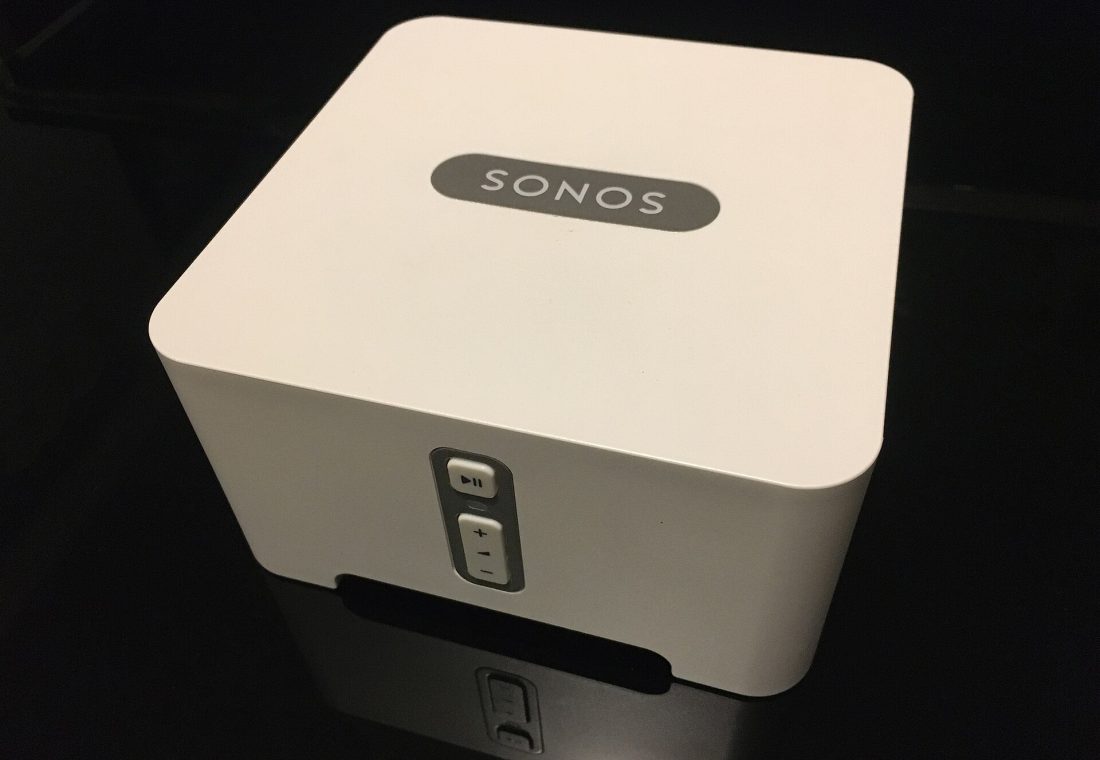
For many audio enthusiasts, the Sonos ecosystem represents the gold standard for multi-room wireless audio. Whether you are purchasing your first speaker or expanding an existing home theater setup, the process of integrating new hardware into your network is streamlined through the company’s dedicated mobile application. Understanding the setup workflow is essential for ensuring that your new device communicates effectively with your Wi-Fi network and other Sonos components.
The Central Role of the Sonos App
Unlike some audio brands that rely on web-based portals or complex manual configurations, Sonos places the mobile app at the center of its user experience. Whether you have just unboxed a new speaker or are adding a subwoofer to a living room system, the app serves as the primary interface for initial configuration. This centralized approach ensures that all devices, regardless of model or age, are managed through a consistent and familiar interface.
Why the App is Required
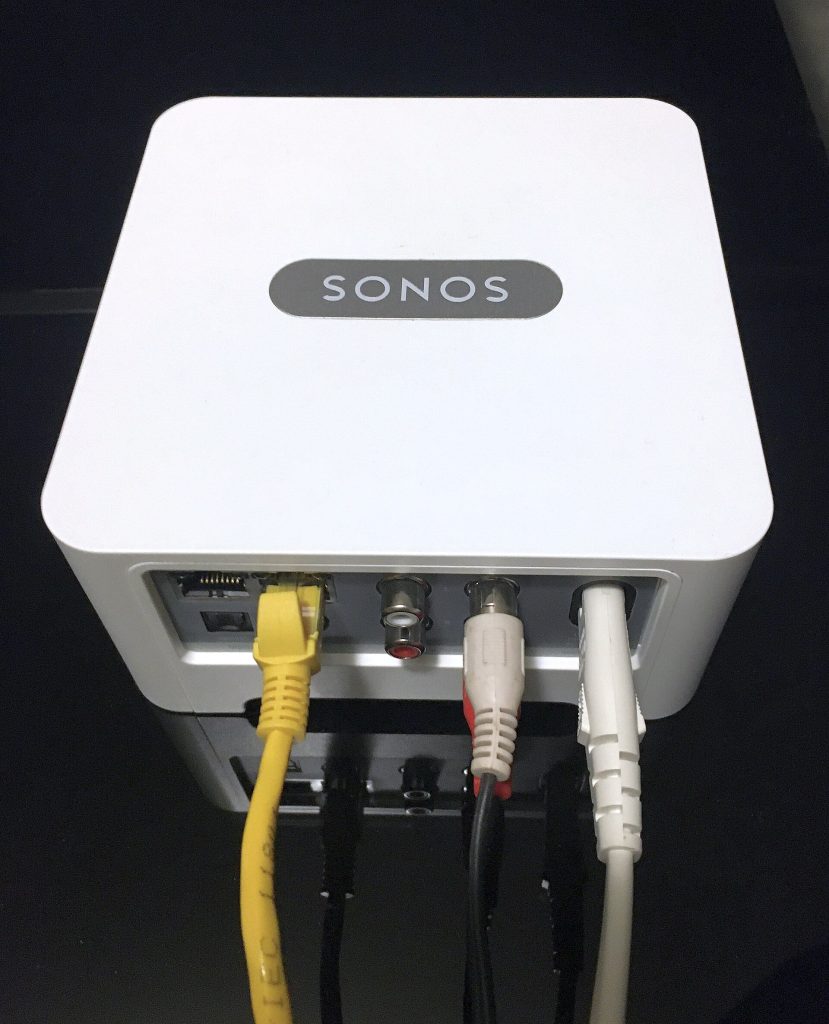
The necessity of the app stems from the way Sonos devices handle network discovery and audio routing. While the physical connection to power is straightforward, the digital handshake between the speaker and your home network requires specific protocols that the app facilitates. This includes assigning the device to a specific room, updating firmware, and integrating it into existing groups or stereo pairs. Without the app, users would lack the tools to customize audio settings, manage multi-room playback, or troubleshoot connectivity issues effectively.
Initial Setup Considerations
Before launching the application, it is helpful to understand the context in which you are setting up the device. The setup process may vary slightly depending on whether you are establishing a new Sonos account or adding a device to an existing profile. For new users, the app will guide them through account creation and network selection. For existing users, the process is typically faster, focusing primarily on the new hardware.
Network Connectivity
One of the most critical aspects of the setup is ensuring that the speaker can connect to your home Wi-Fi network. The app will prompt you to select your network and enter the password. It is important to note that Sonos devices generally operate on the 2.4 GHz band for initial setup, although they may utilize 5 GHz for higher bandwidth audio streaming once connected. Users with complex network setups, such as those with guest networks or mesh systems, should ensure that the app is connected to the same network as the speaker to facilitate discovery.

Managing Your Audio Ecosystem
Once the initial setup is complete, the app becomes the hub for managing your entire audio environment. This includes the ability to group speakers together for synchronized playback, create stereo pairs for enhanced sound quality, or assign specific speakers to different rooms. The interface is designed to be intuitive, allowing users to drag and drop speakers into groups or adjust volume levels with simple gestures.
Multi-Room Capabilities
A key feature of the Sonos ecosystem is its multi-room capability. The app allows users to create groups of speakers that play the same audio source simultaneously. This is particularly useful for parties or when you want to listen to the same music in different parts of the house. The app makes it easy to add or remove speakers from a group, ensuring that your audio experience is seamless and synchronized.
Troubleshooting and Support
In the event that a speaker does not connect as expected, the app provides built-in troubleshooting tools. These tools can help diagnose common issues, such as weak Wi-Fi signals, firmware conflicts, or network configuration errors. By using the app’s diagnostic features, users can often resolve connectivity problems without needing to contact customer support.
Firmware Updates
Regular firmware updates are crucial for maintaining the performance and security of your Sonos devices. The app automatically checks for and installs updates when connected to the internet. Keeping your devices up to date ensures that you have access to the latest features and bug fixes, as well as compatibility with new streaming services.
Best Practices for a Smooth Setup
To ensure a smooth setup experience, consider the following best practices:
- Ensure a Stable Wi-Fi Connection: A strong and stable Wi-Fi signal is essential for reliable audio streaming. If you experience buffering or dropouts, consider moving the speaker closer to your router or upgrading your network hardware.
- Keep the App Updated: Always use the latest version of the Sonos app to benefit from the most recent features and improvements.
- Follow the On-Screen Instructions: The app provides step-by-step guidance for each stage of the setup process. Pay close attention to the instructions to avoid common mistakes.
- Test Your Audio: Once the setup is complete, test the speaker with different audio sources to ensure that it is functioning correctly. Adjust the volume and equalizer settings to suit your preferences.
Conclusion
Setting up Sonos speakers using the app is a straightforward process that unlocks the full potential of your audio system. By leveraging the app’s intuitive interface and powerful features, you can create a seamless multi-room audio experience that enhances your home entertainment. Whether you are a new user or a seasoned Sonos enthusiast, the app remains the essential tool for managing and optimizing your audio ecosystem.


